 TunesFork
Ableton Live 12 · Project management
How to recover a crashed Ableton Live project
On this page
- Which recovery method do you need?
- Recover work after Live crashes
- Recover a crashed Set from the Crash folder
- Open an older version from the Backup folder
- When a Set crashes as soon as you open it
- If Live says the Set is corrupted
- Recover a recording you never saved
- How to stop losing Ableton projects
- Frequently asked questions
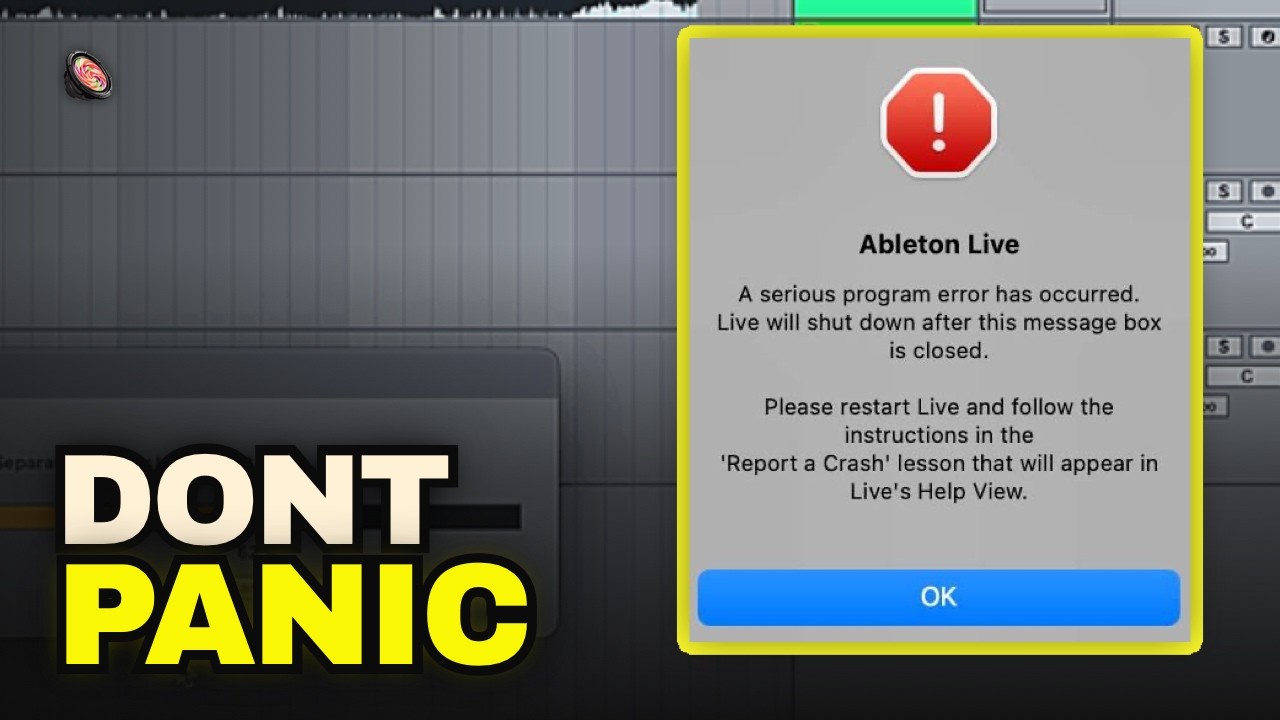
When Ableton Live crashes, there are three places your work can come back from. Click Yes on the recovery dialog the next time Live starts. If you clicked No, restore the files Live moved into its Crash folder. If the Set itself is damaged, open one of the ten most recent saves Live keeps in the project's Backup folder. A Set that crashes as soon as you open it can usually be rebuilt track by track from Live's Browser.
This guide covers each route for Live 12 on macOS and Windows, with Ableton's own folder paths, and ends with how to stop it happening again.
Which recovery method do you need?
| What happened | What to do |
|---|---|
| Live crashed and is offering to restore | Click Yes on the recovery dialog |
| You clicked No, or no dialog appeared | Restore from the Crash folder |
| The Set opens, but your latest changes are gone or broken | Open a save from the Backup folder |
| Live crashes every time you open the Set | Rebuild it in a new Set from the Browser |
| Live says "The document … is corrupted" | Look for a temporary copy, or send the file to Ableton Support |
| You lost a recording that was never saved | Check Live's Temp Project recordings folder |
Recover work after Live crashes
While you work, Live keeps an undo file in its preferences folder. After a crash, that file is what lets it rebuild the session.
- Restart Live. Its recovery process runs automatically at launch.
- Click Yes when Live asks whether to restore your work. Live rebuilds the session from its recovery data.
- Save immediately with Cmd+S (Mac) or Ctrl+S (Windows), ideally under a new name with File → Save Live Set As, so the recovered state is safe before you touch anything else.
Recover a crashed Set from the Crash folder
If you clicked No, or Live didn't offer to restore, the recovery data isn't gone. Live moves it into a folder called Crash inside its preferences folder. Ableton's own guide, Recovering a Set manually after a crash, describes the process. The Crash folder is hidden by default and sits in a folder named after the Live version that crashed (for example Live 12.3):
| macOS | Users/[Username]/Library/Preferences/Ableton/Live x.x.x/Crash/ |
|---|---|
| Windows | Users\[Username]\AppData\Roaming\Ableton\Live x.x.x\Preferences\Crash\ |
- Quit Live completely. On a Mac, right-click Live in the Dock and choose Quit. On Windows, end it in Task Manager (Ctrl+Shift+Esc).
- Open the Crash folder at the path above, for the Live version that crashed.
- Find the three items from your crash:
BaseFiles,CrashRecoveryInfo.cfgandUndo. Each is stamped with the date and time of the crash. If Live has crashed more than once, use only the set matching the crash you want. - Remove the date and time from each name.
- Move them up one level, into the
Live x.x.xfolder, and choose Replace if asked. - Start Live. The recovery dialog should appear again. This time, click Yes.
Ableton says recovery only works in the same Live version that created the files, so don't update Live before you've recovered the Set.
Open an older version from the Backup folder
Every Live Project gets a Backup folder the second time you save a Set. According to Ableton's Backup Sets article, Live keeps the ten most recently saved versions there, each marked with a timestamp in brackets. Once there are more than ten, the oldest goes to the trash.
- Open the project in Live's Browser, or open the project folder in Finder or Explorer.
- Open the Backup folder and pick the version from before things went wrong. The timestamp tells you when it was saved.
- Open it, then save it back into the project under a clear name with File → Save Live Set As, so the next ten saves don't rotate it away.
A backup is a saved version of the Set, which still expects your audio to be in the project. If it opens with missing files, click the status bar and relink them, or read how to make a project self-contained with Collect All and Save.
Ten versions goes quickly on a busy day. If you save every few minutes, the backup from this morning may already be in the trash.
When a Set crashes as soon as you open it
The video walks through the Live 12 approach for a Set that crashes on load. It rebuilds the Set inside a fresh one instead of opening it directly.
- Create a new, empty Live Set.
- Find the broken project in Finder or Explorer. If there are several
.alsfiles, sort by date modified to find the newest. - Drag the
.alsinto the empty Set. Dropped to the right of the existing tracks, it brings in every audio and MIDI track. Often the whole Set loads this way. What doesn't come across is the Main track's devices. - If that crashes too, go track by track. Add the project folder to the Browser's Places, click the arrow beside the Set to unfold it, and drag tracks in one at a time. Open groups and bring those in the same way.
- Watch for the crash. The track that takes Live down holds the problem. In the video, the usual suspect is a plugin that's outdated, incompatible or pirated, especially one added recently.
- Deal with that one track. Update the plugin, swap it for another, or rebuild the track. Losing one track is better than losing the song.
- Bring the Main track across. Drag the Main track's devices from the unfolded Set onto the new Set's Main track header to get your mastering chain back.
- Save the rebuilt Set under a new name.
Ableton describes the same Browser technique in its guide to merging Sets. Return tracks and scenes come across separately from the tracks.
If Live says the Set is corrupted
A damaged file opens with the message "The document [filename] is corrupted", followed by a reason such as "Non-unique list IDs" or "Unknown Compound Stream Type". The second one usually means another app, often a cloud-sync or file-management tool, has damaged the .als.
- Look for a temporary copy. Live writes temporary Sets, which may predate the damage, to
Library/Application Support/Ableton/Live Reports/Temp/(macOS) orAppData\Roaming\Ableton\Live Reports\Temp\(Windows). Open each one to check. If you find your project, rename the corrupt file, move the temporary.alsinto the project folder and give it the original name. - Try the Backup folder for the last good save.
- Send the
.alsto Ableton Support. Its team can repair some kinds of corruption.
Recover a recording you never saved
Audio recorded into a Set that was never saved may still be on disk. Ableton lists these locations:
- macOS:
Users/[Username]/Music/Ableton/Live Recordings/Temp Project - Windows:
C:\Users\[Username]\AppData\Local\Temp\
How to stop losing Ableton projects
- Save constantly. Cmd+S / Ctrl+S after every idea. Crash recovery is a safety net, not a save.
- Don't count on Undo. Live's Undo History isn't stored with the Set and starts empty every time you open it.
- Keep the project self-contained. Samples dragged in from all over your drive are the first thing to go missing. Collect them into the project folder.
- Keep Live and plugins up to date. Crashes on load usually trace back to one misbehaving device.
- Keep a history that isn't on the same drive. The Backup folder lives inside the project, so a dead drive or a deleted folder takes it too. TunesFork Sync uploads the whole project folder on every save: the Set, recordings, samples and processed files such as separated stems. Each save becomes a version you can open again later.
Frequently asked questions
How do I recover an Ableton project after a crash?
Restart Live and click Yes when it offers to restore your work. If you clicked No, recover the files from the Crash folder in Live's preferences folder. If the Set is damaged, open an earlier save from the project's Backup folder.
Where is the Ableton Backup folder?
Inside each Live Project folder, next to the .als file. Live creates it the second time you save a Set, and you can open it from the project folder on disk or from Live's Browser.
How many backups does Ableton keep?
Ten. The Backup folder holds the ten most recently saved versions of the Set, and the oldest is moved to the trash when an eleventh is saved.
I clicked No on the recovery dialog. Is my work gone?
Not necessarily. Live moves the recovery files into a Crash folder in its preferences folder. Rename them to remove the date, move them into the Live version folder, and restart Live to trigger recovery again.
Why does my Ableton project crash when I open it?
Usually one track or device in the Set, often an outdated or incompatible plugin. Rebuild the Set in a new, empty Set by dragging its tracks in from the Browser one at a time, and the track that crashes Live is the culprit.
What does "The document is corrupted" mean in Ableton?
The .als file is damaged, sometimes by a cloud-sync or file-management app. Look for a temporary copy in Live's Live Reports/Temp folder, open a save from the Backup folder, or send the file to Ableton Support for repair.
Can I recover an Ableton set I never saved?
Only partly. If Live crashed, the recovery dialog can bring back the session. Unsaved recordings may still be in Live's Temp Project recordings folder. Otherwise, unsaved work can't be recovered, which is why frequent saves matter.